How the Excel-in-Browser Demo Actually Works.
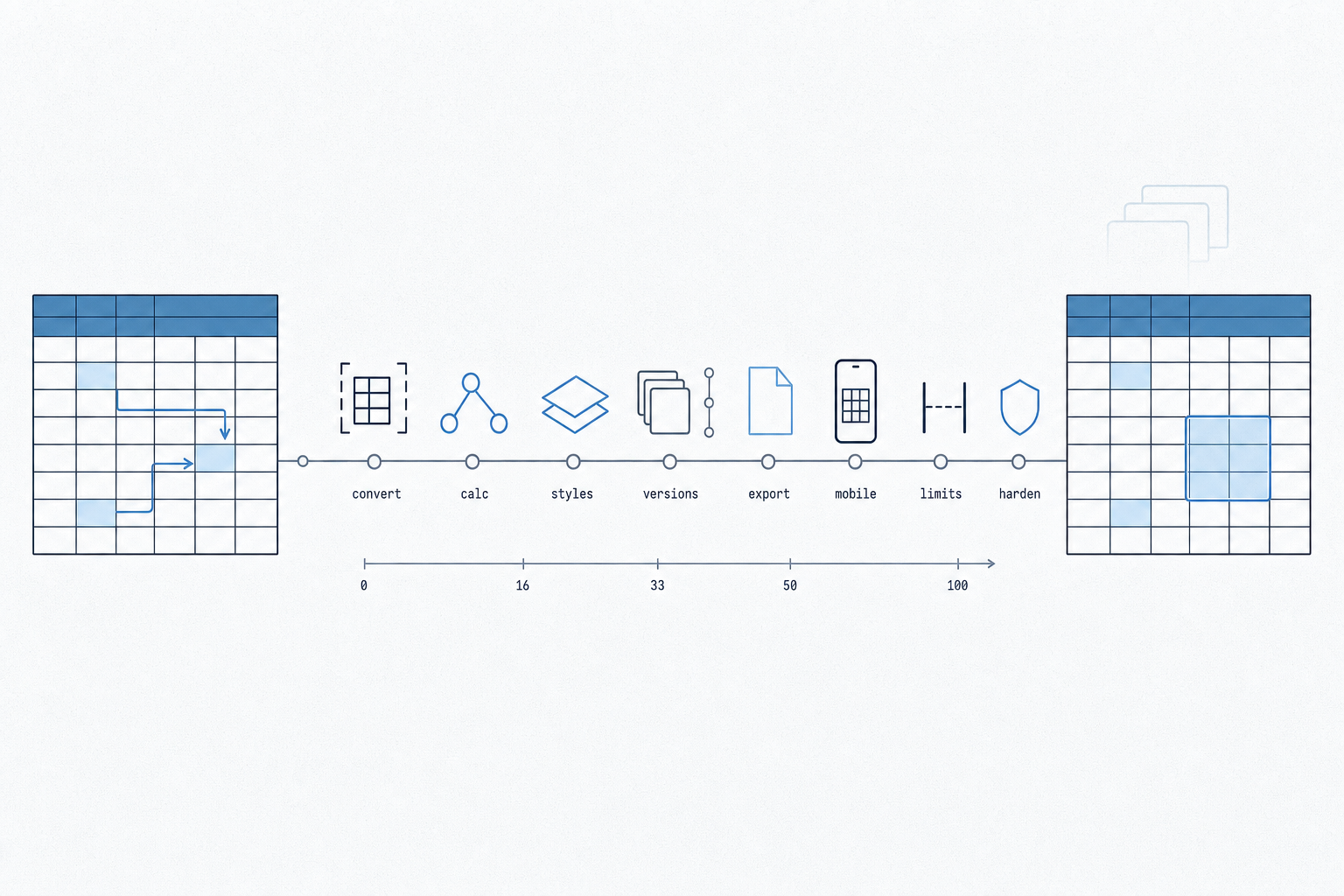
A technical deep dive into the Excel-in-browser architecture: workbook conversion, formula recalculation, style fidelity, version storage, Excel export, mobile fallback, performance, limits, and hardening.
The first article showed the surface area: a real Excel workbook embedded in a browser page. This is the engineering version. How does a spreadsheet become a live web artifact without turning into a screenshot, a static table, or a second model that drifts from the file?
The core idea is simple: treat the spreadsheet as the application. The workbook already contains formulas, formatting conventions, section structure, audit signals, assumptions, and outputs. The web layer should promote that model, not rewrite it.
That makes the architecture more interesting than a normal embed. The system has to parse a source .xlsx, preserve enough of Excel's semantics to be useful, mount a browser-native spreadsheet runtime, recalculate formulas on edit, optionally persist versions, and export the edited state back to Excel. Each step has a failure mode.
The system shape
The pipeline starts with a normal Excel workbook and ends with browser-loadable artifacts. The scaffold command is deliberately boring:
python3 scaffold.py <source.xlsx> <slug> "<Title>" [portal_dir]That single command writes three outputs:
<slug>.workbook.json- a workbook converted into Univer'sIWorkbookDatashape.<slug>.borders.json- an import-time sidecar for Excel borders that need to survive export.<slug>.html- a page shell with the grid mount, controls, version UI, download path, and mobile fallback.
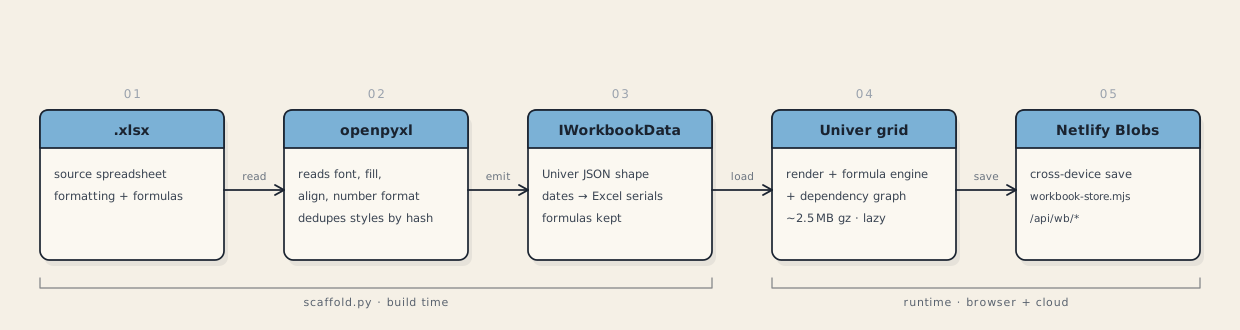
.xlsx file to render.The source workbook is not blindly copied into the public page. That matters. Real workbooks carry hidden sheets, stale names, comments, internal notes, and other debris. The safer public artifact is a cleaned workbook model containing the visible surface you meant to ship.
That does not mean the export is fake. The Download Excel path serializes the current browser state into a new .xlsx. If a user changes an assumption, the downloaded workbook carries that changed state.
The conversion pass
The importer uses openpyxl to walk the workbook sheet by sheet and cell by cell. It extracts more than the displayed value:
- raw cell value or formula expression;
- number format;
- font family, size, weight, italic, underline, and color;
- fill color;
- horizontal and vertical alignment;
- row height and column width where present;
- merged ranges;
- border definitions for the export sidecar.
The most important conversion detail is style deduplication. A financial model may have tens of thousands of cells, but far fewer unique styles. Repeating the whole style object on every cell would make the JSON larger and harder to reason about. Instead, the importer hashes each style, stores it once, and points cells at a style ID.
{
  "styles": {
    "s42": {
      "font": { "bold": true, "color": "#163A73" },
      "fill": { "rgb": "#FFF9CC" },
      "numberFormat": "$#,##0.0"
    }
  },
  "cellData": {
    "14": {
      "6": { "v": 2056.0, "s": "s42" }
    }
  }
}
That seems cosmetic until you work in models every day. Blue text on yellow fill usually means a hardcoded input. Black text usually means a formula. Grey rows often mean subtotals. Section fills are navigation. Losing those conventions makes the model technically rendered but practically less auditable.
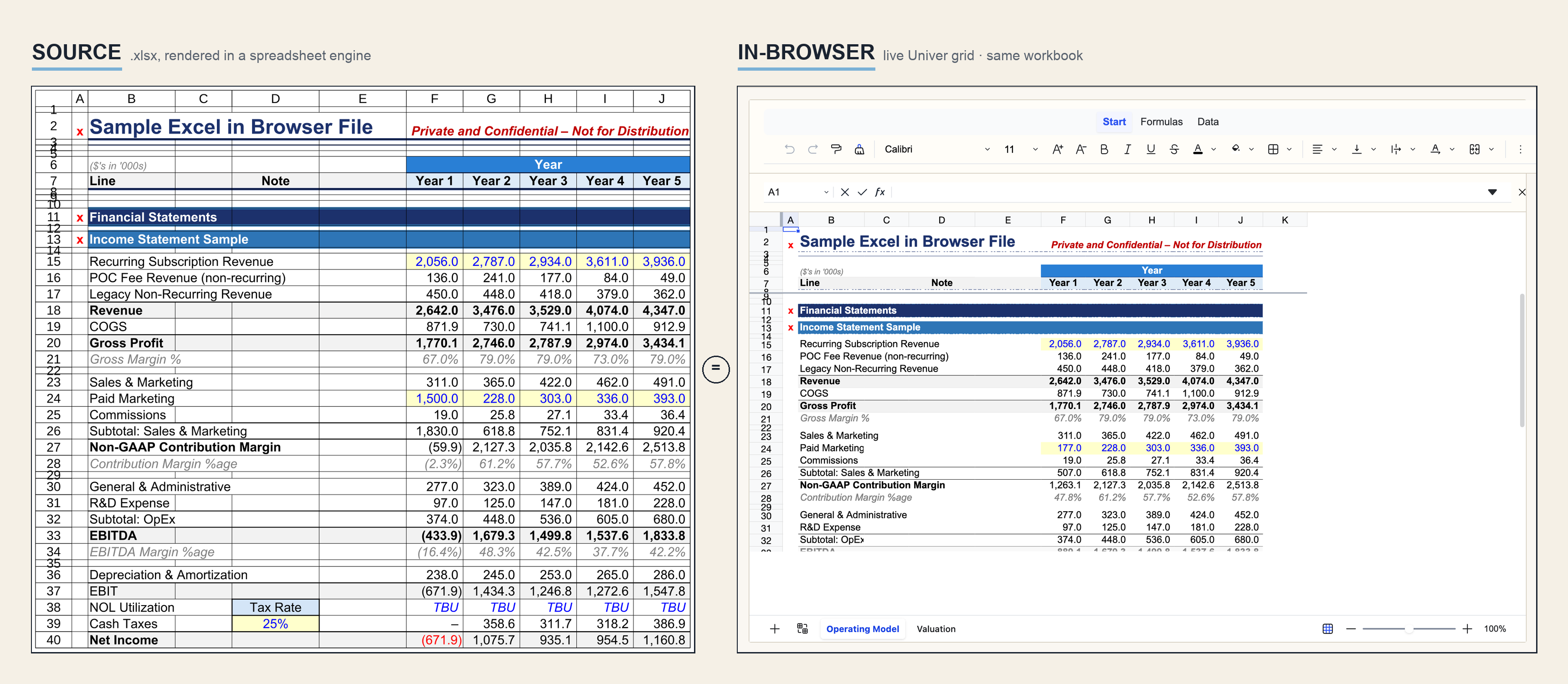
Formulas stay formulas
The load-bearing decision is that formulas are stored as formulas, not flattened into cached values.
Most spreadsheet-to-web shortcuts fail here. They render the current calculated numbers and call the result an embedded spreadsheet. The first edit exposes the lie: downstream cells do not move. The grid is only a photograph.
In this system, formula expressions are carried into the browser workbook model and handed to Univer's formula engine. The engine builds a dependency graph across the workbook. When an input changes, it does not recalculate every visible cell. It walks the graph and updates the affected downstream cells.
Excel
=C15*(1+D15)

Browser workbook model
{
  "f": "C15*(1+D15)"
}
The practical result is that the page behaves like the model. Change a revenue driver and the dependent revenue, gross profit, EBITDA, margin, and cash flow cells move with it.
The dependency graph
A spreadsheet is a graph whether the author thinks about it that way or not. Driver cells feed formulas. Those formulas feed other formulas. The engine's job is to keep the graph current without making the page feel heavy.
| Step | What happens | Why it matters |
|---|---|---|
| Parse | Formula strings become structured dependencies. | The engine can know that G18 depends on C15:F17. |
| Track | Each edit marks downstream cells dirty. | The browser avoids full-workbook recalculation on every keystroke. |
| Recalc | Only affected cells are recomputed. | Large workbooks stay interactive enough for the page. |
| Paint | The grid repaints the changed canvas region. | The user sees the model respond immediately. |
For the benchmark workbook - roughly 5 MB, 12 worksheets, and about 85,000 cells - recalculation was around 45 ms. That is the difference between "interesting prototype" and "this feels like a model."
The rendering layer
The desktop renderer uses Univer, a browser-native spreadsheet engine. This is the part that makes the artifact feel like a workbook instead of a table. It gives the page a grid, formula bar behavior, sheets, selection, keyboard editing, canvas rendering, and recalculation.
Because the spreadsheet runtime is large, it should not be treated like ordinary article JavaScript. The page lazy-loads the bundle when the workbook enters the viewport. If there are multiple embeds on a page, the loader should pay the runtime cost once, not once per workbook.
Mounting is also more brittle than mounting a normal DOM component. The grid depends on a visible container with real dimensions. If the article lays out late, a tab opens in the background, or the element starts at zero width, a naive mount can produce a blank canvas.
The mounter therefore checks three things before it starts:
- the container exists;
- the container has usable width and height;
- the document is visible enough for the canvas runtime to initialize.
A watchdog covers the other common failure: a grid mounts, then the canvas disappears after navigation, resizing, or a runtime hiccup. The watchdog remounts with a cap. It is important that the cap exists. A self-healing UI that loops forever is just a quieter failure.
Mobile uses a different renderer
The desktop spreadsheet runtime is the right tool for a reader with enough screen width to inspect and edit a model. It is the wrong tool for a phone.
Below 700 px, the page swaps to a lightweight HTML table generated from the same workbook data. The first column stays sticky, the visible formatting is inlined, and the heavy grid bundle does not load. The goal is not to pretend complex spreadsheet editing is pleasant on a phone. The goal is to keep the article readable and avoid spending a multi-megabyte runtime on a worse interaction.
That mobile renderer is still source-derived. It is not a separate screenshot. It is another projection of the same workbook model.
Persistence and versioning
The public blog demo resets on reload. For a post, that is correct. Nobody reading an article should accidentally leave saved assumptions for the next person.
The generated application can also run with persistence. In that mode, all workbook writes go through a server route mounted at /api/wb/*. The browser never receives a write key. The server validates the request, applies the size and shape checks, and then writes to the workbook's keyspace.
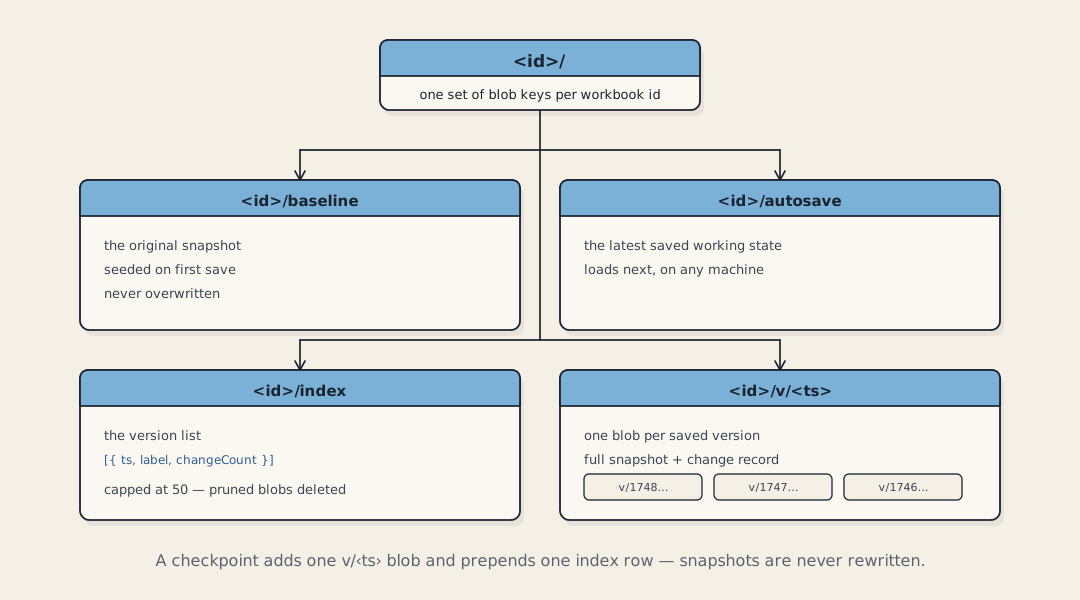
| Key | Purpose | Write behavior |
|---|---|---|
<id>/baseline |
The original workbook state. | Seed once, then treat as immutable. |
<id>/autosave |
The latest working state. | Overwrite on save. |
<id>/index |
The list of named versions. | Append and cap. |
<id>/v/<ts> |
A full snapshot for one saved version. | Write once per checkpoint. |
The baseline is the audit anchor. When a user saves a version, the system can diff the current workbook against the baseline and show meaningful cell-level changes instead of vague "file changed" history.
Operating Model!G15: 2,056.0 -> 2,180.0
Operating Model!G24: 177.0 -> 201.0
Operating Model!G33: 889.1 -> 936.4
This is not trying to be real-time collaboration. The persisted version is shared state per workbook ID. That is useful for a small portal, a private analysis page, or a controlled client workflow. It is not a replacement for every permission and collaboration feature in Excel Online or Google Sheets.
The Excel export path
The Download Excel button exports the live grid, not the source file. That distinction is the whole point of the demo. If the browser is only serving the original workbook back to the user, none of the in-page interaction matters.
The export path serializes Univer's current workbook snapshot into a real .xlsx using xlsx-js-style. Values, formulas, number formats, fills, fonts, alignment, and wrapping map back into workbook styles.
Borders need special handling. They do not survive the JSON round trip cleanly through the same browser-side writer, so the importer captures them into .borders.json. During export, those border definitions are overlaid onto the generated workbook.
This is unglamorous work, but it is the kind of detail that decides whether the result feels credible. A finance person will forgive a web UI quirk sooner than they will forgive a downloaded model that loses the visual structure they use to audit the file.
Performance numbers
The original benchmark workbook was about 5 MB, with 12 worksheets and roughly 85,000 cells. These numbers are not a lab-grade benchmark; they are the practical measurements that shaped the implementation.
.xlsx.
The main lesson is that the spreadsheet runtime cost is acceptable only when it is paid deliberately. Lazy loading and mobile fallback are not polish. They are part of the architecture.
Hardening is most of the work
The happy path is easy to demo. The unhappy paths are where the project becomes a real artifact.
| Failure mode | What can go wrong | Mitigation |
|---|---|---|
| Zero-width mount | The grid initializes into a container that has not laid out yet. | Wait for visible dimensions before mounting. |
| Background tab | Canvas initialization happens while the browser throttles rendering. | Gate on visibility and retry when the page becomes active. |
| Double mount | Two runtimes attach to the same container. | Track mount state and destroy before remounting. |
| Lost canvas | The runtime reports success, but the visible canvas disappears. | Watchdog remount with a strict retry cap. |
| Malformed workbook JSON | The page downloads data that is not a valid workbook model. | Validate shape and show an escaped error. |
| Oversized write | A client sends a payload too large for the storage route. | Reject before and after parsing. |
| Origin abuse | A random site tries to write into a workbook keyspace. | Origin check, workbook ID validation, and rate limit. |
The security rule is blunt: never put the write key in the browser bundle. Anything shipped to the browser is readable. A client-side password can reduce accidental access, but the real boundary belongs on the server.
Known limits
This approach is useful, but it is not magic. Excel is an enormous runtime with decades of compatibility behavior. A browser spreadsheet engine can preserve the parts that matter for many analytical models, but it will not reproduce every Excel corner.
- VBA macros and COM integrations: ignored. They depend on the desktop Excel runtime.
- External workbook links: partial support at best. A browser page should not silently chase arbitrary local files.
- Very large workbooks: browser memory becomes the constraint. Workbooks above ~10 MB are the danger zone.
- Concurrent editing: persisted mode is shared state, not full CRDT collaboration.
- Advanced Excel functions: support depends on the formula engine. Unsupported functions need visible fallback behavior.
- Hidden workbook state: the public artifact should intentionally exclude things you did not mean to publish.
Where it fits
The honest answer to "is this better than Google Sheets?" is: it depends. Google Sheets and Excel Online win when the main job is familiar multi-user spreadsheet collaboration. This system wins when the spreadsheet needs to live inside your own page, with your own narrative, UI, storage boundary, and surrounding workflow.
| Capability | Excel Online | Google Sheets | This system |
|---|---|---|---|
Use an existing .xlsx |
Yes | Partial | Yes, through conversion |
| Embed inside your own article or portal | Iframe-style embed | Iframe-style embed | Native page artifact |
| Control the surrounding UI | Limited | Limited | Full page control |
| Formula recalculation in page | Yes | Yes | Yes |
| Cell-level version diffs | Limited | Limited | Custom diff against baseline |
| Real-time multi-user editing | Yes | Yes | No |
| VBA compatibility | Partial / desktop-dependent | No | No |
The best use cases are teaching pages, financial model explainers, private planning portals, pricing tools, lightweight scenario models, and documentation where a static table hides the mechanism.
What changed from a normal document
A normal blog post can link to a spreadsheet. That is useful, but it pushes the reader out of the argument. They have to download the file, open Excel, trust the workbook, find the right tab, and remember what the article was explaining.
An embedded workbook keeps the model inside the page. The spreadsheet stops being an attachment and becomes an interactive figure. The reader can change an assumption at the exact point where the article is discussing that assumption.
That is why this is not merely a technical stunt. Many business arguments are already encoded in spreadsheets. If the workbook can travel with the explanation, the artifact becomes more honest: the reader can inspect the logic instead of taking the conclusion on faith.
Frequently asked questions
Can Excel spreadsheets really become web applications?
Yes, for the parts of Excel that are data, formulas, formatting, sheets, and user interaction. The browser page is not running desktop Excel. It is running a browser spreadsheet engine fed by a converted workbook model.
Why not just use a static HTML table?
A static table can show current values, but it cannot preserve the model. The important behavior is recalculation. If changing a driver does not move the dependent cells, the web page is no longer carrying the spreadsheet's logic.
Can the edited model download back to Excel?
Yes. The export path serializes the live browser state into a new .xlsx. The result is not simply the original source file served again.
Is this a Google Sheets replacement?
No. Google Sheets is the better answer for broad collaboration, comments, permissions, and a familiar spreadsheet product. This is for cases where the workbook needs to be embedded as part of a custom page or workflow.
What does not work?
Desktop-only Excel behavior: VBA, COM add-ins, and local external references. Very large workbooks can also run into browser memory limits. The right target is a self-contained analytical workbook, not every workbook ever created.
Why keep the source .xlsx out of the public page?
Because a real workbook can contain hidden sheets, metadata, comments, stale names, and internal state. The public artifact should include the model surface you chose to publish, not every artifact that happened to live inside the source file.
The spreadsheet already contains the application. The architecture is just the machinery required to make that application live cleanly inside the browser.